
Connect Acaia Lunar or Pearl to Brew Better
Brew Better supports Acaia Lunar and Pearl scales on iOS and Android. Connect your scale from Brew Better’s Bluetooth page, not in your device’s Bluetooth settings. This guide covers setup and what to check if your scale does not appear. If you are still choosing a brewing app, read our Acaia app alternative guide first.
Download on the App Store or Get it on Google Play before following the steps below.
Before You Connect
Before connecting your Acaia scale, make sure:
- Bluetooth is enabled on your device — Open your phone or tablet’s settings and turn on Bluetooth.
- Your Acaia scale is powered on — Press the power button and wait for the display to show the weight reading.
- Brew Better is open — Launch the Brew Better app on your phone or tablet.
Note: You do not need to pair your Acaia scale in your device’s Bluetooth settings. Brew Better connects directly to the scale.
How to Connect Your Acaia Scale
There are two ways to connect your Acaia Lunar or Pearl in Brew Better:
Method 1: Via the Bluetooth Banner
On the home screen, you’ll see a Bluetooth status banner at the top. Tap it to enter the Bluetooth connection page. The app will automatically start scanning for nearby scales. When your Acaia scale appears in the list, tap it to connect.
Method 2: Via the Brew Button
Tap the brew button at the bottom of the home screen to start a new brew. If no scale is connected, the app will prompt you to connect one. You’ll be taken to the Bluetooth page where scanning begins automatically.
If Your Acaia Scale Doesn’t Appear
If scanning completes without finding your Acaia Lunar or Pearl:
- Check that Bluetooth is on. On iOS, grant Brew Better Bluetooth permission; on Android, grant Nearby devices permission when prompted. Older Android versions may request location permission for BLE scanning.
- Keep the scale powered on and close to your phone or tablet.
- Disconnect any other app or device that is connected to the scale.
- Tap Start Scanning at the bottom of Brew Better’s Bluetooth page to scan again.
Acaia Auto-Stop Settings
For auto-stop behavior and other model-specific settings, follow Acaia’s official support. Use Acaia’s official tools for firmware updates.
Start Brewing
With your Acaia scale connected, you’re ready to brew. Place your dripper and server on the scale, then start pouring. Brew Better will automatically detect the brew and begin recording your flow rate curve in real-time.
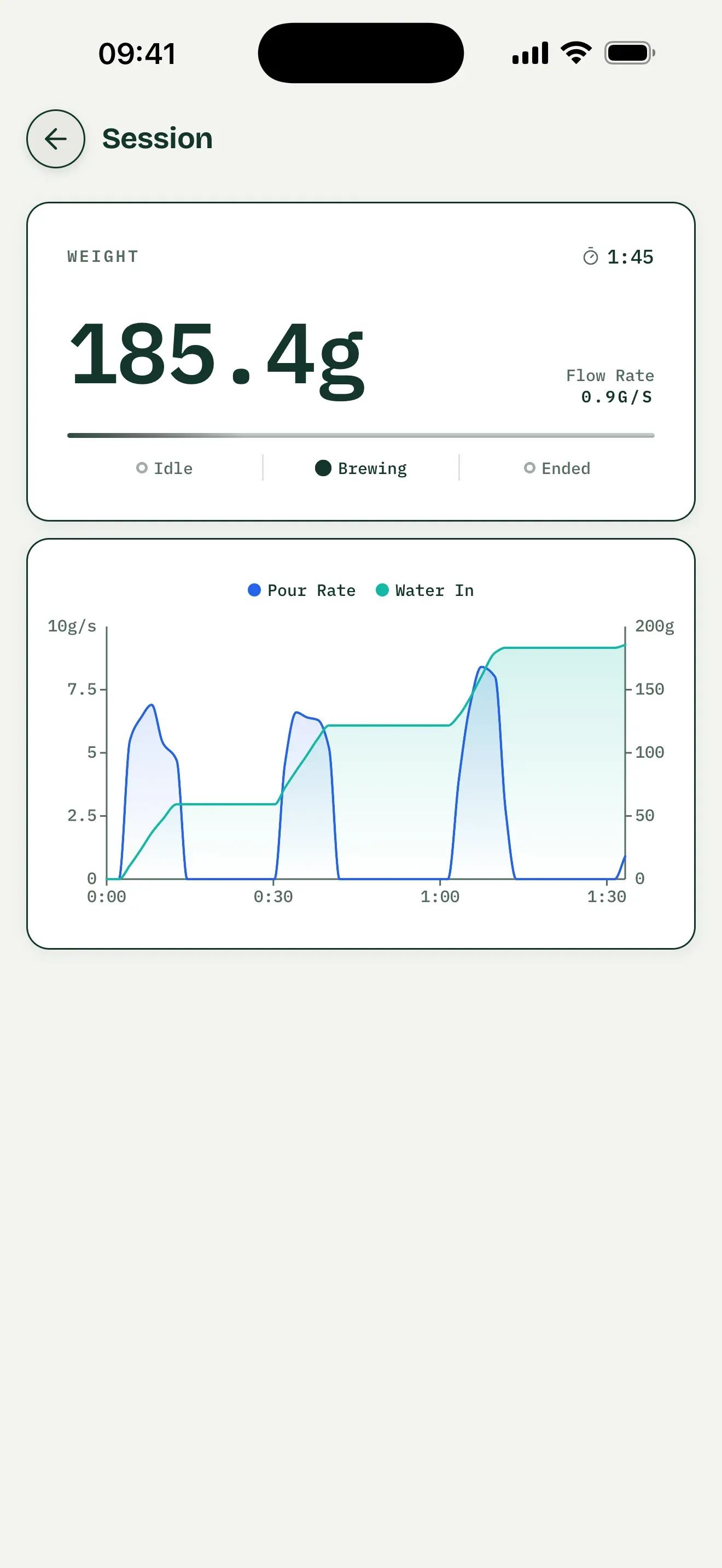
General interface example, not a hardware test of an Acaia Lunar or Pearl.
For a complete overview of Brew Better’s features, see our Getting Started guide.